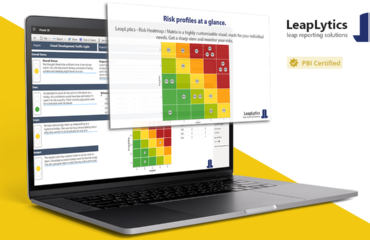
If you need to visualize project or enterprise risks in Power BI, two paths are available: build a risk matrix using the native Power BI Scatter Chart, or use the purpose-built LeapLytics Risk Matrix custom visual. Both plot risks on two axes — typically likelihood and impact. Both live inside Power BI. But they are built for different users, different contexts, and different levels of reporting maturity. This article compares them honestly across the criteria that matter most to Power BI developers and risk managers making a practical tooling decision.
What Problem Are We Actually Solving?
Both options address the same core need: displaying individual risks positioned by two dimensions (most commonly likelihood and impact) so that stakeholders can quickly identify which risks require the most urgent attention. The standard risk matrix format — a quadrant grid, color-coded from green to red, with risks plotted as labeled markers — is a well-established governance tool used across industries from project management to financial services to public sector audit.
The question is not whether Power BI can produce this visualization. It can, with effort. The question is how much configuration effort is required, how well the result communicates risk to non-technical stakeholders, and whether the output holds up when used live in a board meeting or audit committee presentation.
Side-by-Side Comparison
| Criterion | LeapLytics Risk Matrix | Native Power BI Scatter Chart |
|---|---|---|
| Visual output | Purpose-built risk matrix grid with color-coded quadrant zones | Generic scatter chart — approximates risk matrix with significant customization |
| Setup time | ~30 minutes from installation to working dashboard | Several hours to days of DAX and formatting work to approximate a risk matrix layout |
| Risk zone coloring | Native per-cell color configuration via ALT+click; green-to-red zones built in | Requires conditional formatting workarounds; background quadrant shading is not natively supported |
| Risk trend / history | Built-in history mode: shows movement of risks across reporting periods | No native trend overlay; requires separate visuals or complex data modeling |
| Drill-down interactivity | Click a quadrant → filters report page to risks in that zone natively | Standard cross-filtering available but not quadrant-aware; requires additional configuration |
| Licensing cost | Annual license fee (per user or company license via LeapLytics shop) | Included with Power BI Desktop and Power BI Pro — no additional cost |
| Stakeholder readability | Immediately recognizable risk matrix format; no explanation needed in meetings | Scatter chart format requires interpretation; non-technical stakeholders often need guidance |
Detailed Analysis by Criterion
Visual Output and Stakeholder Communication
The native scatter chart is a general-purpose statistical visualization. It can show two-axis positioning, but it does not produce the distinct grid-and-zone format that stakeholders in governance, audit, and risk management contexts recognize as a risk matrix. In a steering committee or board meeting, the visual language matters: a properly structured risk matrix communicates risk posture at a glance, while a scatter chart requires interpretation. The LeapLytics Risk Matrix produces the standard grid format — labeled markers in quadrant cells, color-coded zones from low to critical — without custom development.
Setup and Development Effort
Building a credible risk matrix approximation with the native scatter chart requires significant DAX work: calculated columns for quadrant assignment, background shape layers for zone coloring, axis boundary fixes to prevent automatic rescaling when data changes, and label positioning adjustments to prevent overlap. For an experienced Power BI developer, this is achievable — but it is typically a day or more of work, and the result is fragile: data model changes or new risk entries can break the layout. The LeapLytics visual handles all of this natively, reducing setup to a data mapping exercise that most Power BI users can complete in under an hour.
Risk Trend and History Tracking
One of the most practically valuable features for PMO and governance teams is the ability to show how risk positions have changed over time — which risks have escalated, which have been successfully mitigated, and what the overall directional trend looks like. The LeapLytics Risk Matrix has a dedicated history mode that overlays current and historical risk positions on the same grid. Reproducing this with a native scatter chart requires a separate time-intelligence data model, additional visuals, and significant report page complexity. For teams doing monthly risk reviews, this difference in effort compounds quickly.
Cost
The native scatter chart costs nothing beyond a standard Power BI license. The LeapLytics Risk Matrix requires a separate annual license, available per user or as a company-wide license via the trial and shop pages. For individual developers experimenting or for organizations with a single risk dashboard and no governance reporting requirements, the cost differential is a legitimate factor. For organizations running regular risk reviews across multiple projects or departments, the time saved in setup and maintenance typically offsets the license cost within the first few reporting cycles.
Drill-Down and Interactivity
Both options support Power BI’s standard cross-filtering — clicking an element in one visual filters others on the page. The difference is precision: the LeapLytics Risk Matrix is quadrant-aware, meaning a click on a specific risk zone filters downstream visuals to exactly the risks in that severity band. With the native scatter chart, cross-filtering works at the data point level (clicking individual markers) but not at the zone level without custom bookmarks or selection workarounds. For live governance meetings where a stakeholder wants to immediately investigate all critical-zone risks, this distinction is meaningful.
When the LeapLytics Risk Matrix Is the Better Choice
- You are building a risk dashboard for regular governance reporting — steering committees, audit committees, board presentations — where visual clarity and immediate stakeholder readability matter.
- Your team needs risk trend tracking across reporting periods to demonstrate how the risk landscape is evolving over time.
- You want quadrant-level drill-down available in live meetings without additional configuration overhead.
- You are managing multiple projects or departments and need a standardized, maintainable risk visualization that will not break when the data model changes.
- You need the report to be usable by non-technical stakeholders without a walkthrough — particularly in industries like financial services, insurance, or public sector where risk matrix literacy is assumed.
When the Native Scatter Chart Is the Better Choice
- You are prototyping or exploring risk visualization for the first time and want to test the concept without any additional tooling cost.
- Your organization has strict policies against third-party custom visuals and the approval process for new AppSource visuals is slow or unavailable.
- Your risk dataset is small, static, and only needs to be presented once — for example, a one-time project closure review rather than ongoing governance reporting.
- You have a Power BI developer with significant DAX expertise available who is willing to invest the setup time and maintain the custom implementation over time.
Verdict: Which Should You Use?
For Power BI developers building one-off visualizations or prototypes: the native scatter chart is a reasonable starting point. It costs nothing, requires no installation, and can approximate a risk matrix if you are willing to invest configuration time. Expect to spend several hours getting the layout right, and plan for ongoing maintenance as your data changes.
For risk managers and PMO leads who need a production-grade risk dashboard: the LeapLytics Risk Matrix is the more practical choice. The purpose-built visual format saves development time, produces a more credible output for governance audiences, and includes features — trend history, quadrant drill-down, per-cell color configuration — that would require significant custom work to replicate natively. The license cost is justified if the dashboard will be used in recurring reporting rather than as a one-time output.
The honest summary: both tools can display risks on two axes. Only one of them is built specifically for risk management. Whether that specialization is worth the additional cost depends on how frequently you use it and who needs to read it. For more on how to get the most out of risk visualization in Power BI, see the LeapLytics article From Heatmaps to Action Maps.